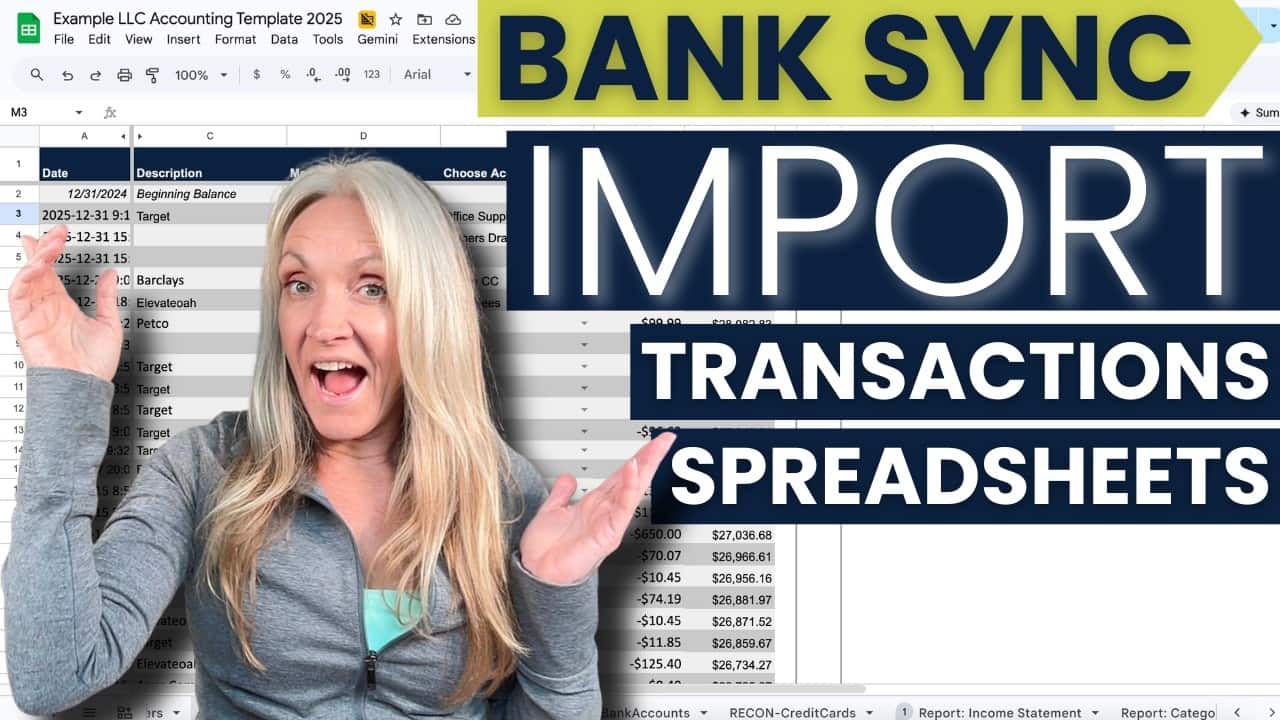
If you use a spreadsheet to manage your business finances, you may already import bank transactions by downloading them from your bank and credit card accounts and copying them into your spreadsheet manually.
That works, but it also means repeating the same process every time you update your books.
The good news is that you can automatically import bank transactions into Google Sheets instead, giving you some of the automation of accounting software while still letting you use your own spreadsheet and control where your data goes.
In this guide, we’ll walk through how to use Bank Sync to connect your bank and credit card accounts to Google Sheets, map the transaction data to the right columns, and set up a schedule to import transactions automatically.
You’ll also see how those imported transactions can work with an accounting spreadsheet, from choosing where the data goes to using that information to update your reports.
You can also watch the full walkthrough here:
Table of Contents
- How Can You Import Bank Transactions Into Google Sheets Automatically?
- What Is a Bank Feed and How Does It Work With Google Sheets?
- How Do You Set Up a Bank Feed for Google Sheets?
- How Do You Map Bank Transactions to Your Google Sheet?
- How Do You Automatically Sync Bank Transactions to Google Sheets?
- What Should You Know Before Using Bank Sync?
- FAQs
- About the Author
How Can You Import Bank Transactions Into Google Sheets Automatically?
If you’re using a spreadsheet to keep track of your business finances, you need a way to get your bank and credit card transactions into that spreadsheet.
You can certainly do this manually. With spreadsheets, the default way is pretty simple: download the transactions from your bank or credit card account, then copy and paste them into your spreadsheet.
There’s nothing wrong with doing it that way, but it does mean repeating the same process every time you update your books.
The good news is that there are tools that can automatically import your transactions into Google Sheets instead. For this walkthrough, we’re going to use Bank Sync to connect your financial accounts to your spreadsheet and bring those transactions in automatically.
Can You Automatically Import Bank and Credit Card Transactions Into a Spreadsheet?
Yes. Instead of downloading and moving your transactions into your spreadsheet yourself, you can connect your bank or credit card account and have the transaction data imported for you.
With Bank Sync, you can choose which financial account you want to connect, which spreadsheet you want to use, and even which worksheet should receive the transactions.
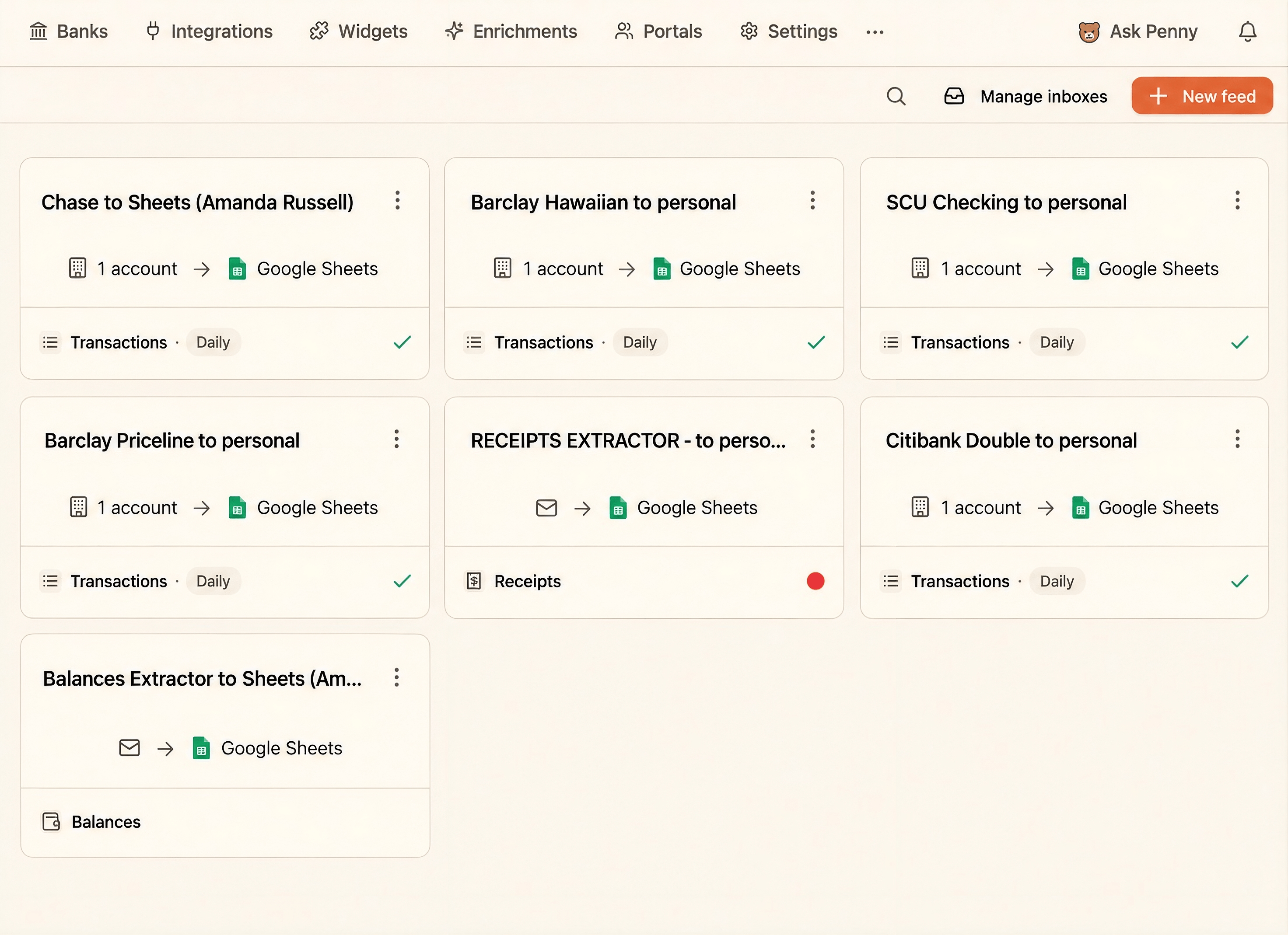
And you’re not limited to a spreadsheet created by Bank Sync. If you already have a spreadsheet you use for your accounting, you can connect that spreadsheet and decide exactly where the imported information should go.
We’ll walk through how to set all of that up below.
Can You Import Transactions Instead of Manually Downloading and Copying Them Into Your Spreadsheet?
Yes. The biggest difference is how your transactions get into the spreadsheet.
If You Import Manually | If You Import Automatically |
|---|---|
Download transactions from your bank or credit card account | Connect your bank or credit card account |
Copy and paste the transactions into your spreadsheet | Transactions are imported into your spreadsheet for you |
Repeat the process when you need to update your books | Sync transactions through the connected bank feed |
You can still use the manual method if that works for you. For example, my free business spreadsheet can be used to organize your business income and expenses by adding your transactions manually.
But if you want to take that repetitive importing step off your plate, an automatic connection gives you another option.
Want a Simple Way to Organize Your Business Finances?
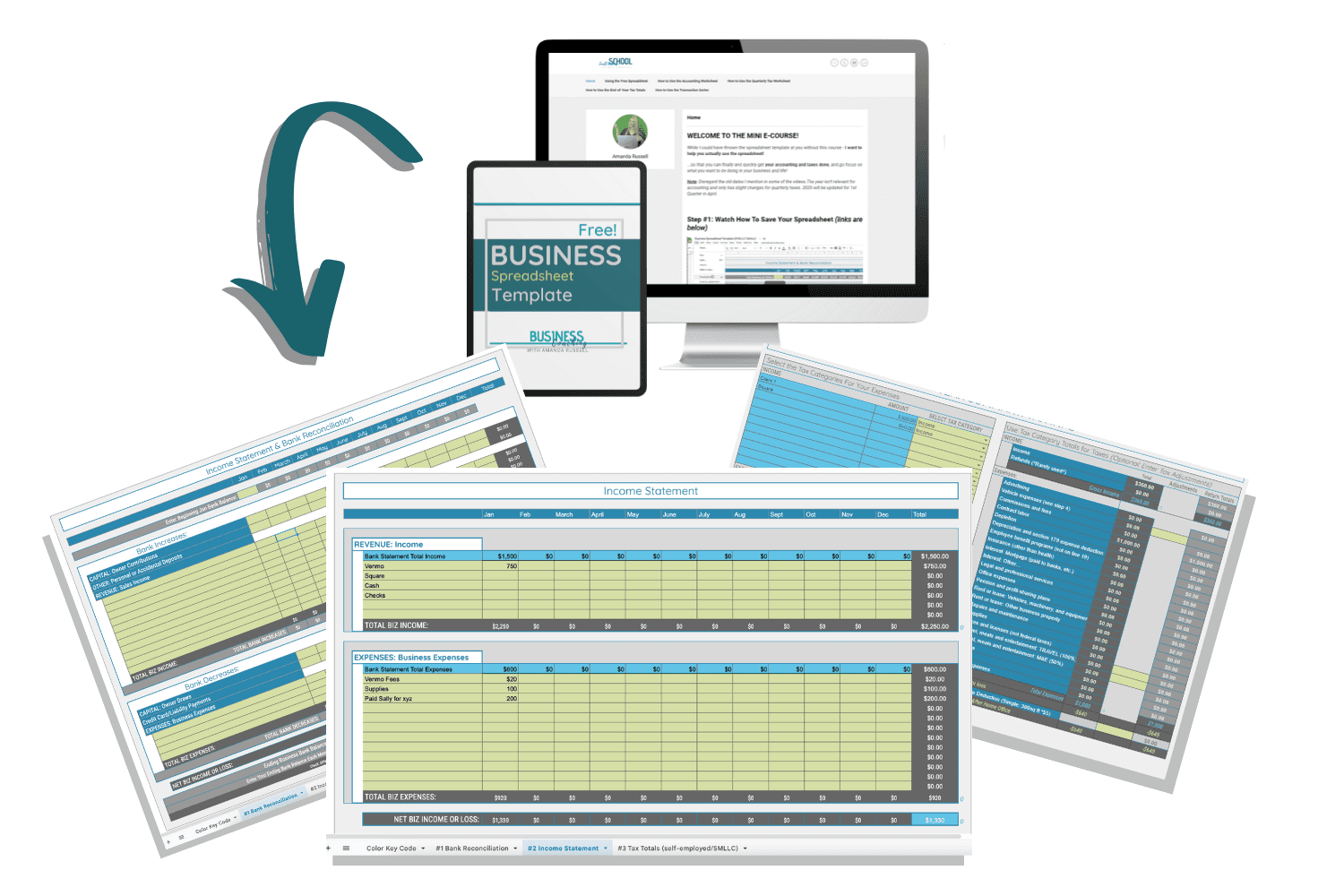
If you’re keeping things simple for now, you can use my free business spreadsheet to start organizing your own business income and expenses.
It gives you a simple place to keep your transactions organized while you get comfortable managing your business finances in a spreadsheet.
Get the Free Business Spreadsheet Here!
How Can Automatic Importing Make Spreadsheet Bookkeeping Easier?
This is where you get a nice combination of automation and flexibility.
Accounting software like QuickBooks can automatically bring in your transactions, which saves you from having to download and enter that information yourself.
But spreadsheets give you more flexibility in how your information is organized.
With an automatic import, you can bring those two things together. Your transactions can come into the spreadsheet automatically, while you still get to work within the spreadsheet setup you want to use.
And you can control more than just which spreadsheet receives the transactions. As we go through the setup, you’ll see how to choose the exact worksheet and even map specific transaction details to the columns where you want them to go.
But before we set that up, let’s look at the bank feed that makes the connection possible.
What Is a Bank Feed and How Does It Work With Google Sheets?
If you want your transactions to import automatically, your bank or credit card account needs a way to communicate with your spreadsheet. That’s where the bank feed comes in.
The bank feed creates that connection so Bank Sync knows which financial account you’re working with and where you want those transactions to go. Instead of downloading transactions from an account and moving them into your spreadsheet yourself, you’re setting up a path for that information to move between the two.
And you can be pretty specific about how that connection works. You’re not just choosing a bank account and a Google Sheet. As you set up the feed, you’ll also choose where the transactions should go, how the information should be organized, and when you want it to sync.
Let’s start with what the bank feed itself means.
What Is a Bank Feed?
A bank feed connects one bank or credit card account to the spreadsheet where you want its transactions imported.
For example, if you have a checking account that you want to connect to your accounting spreadsheet, you can create a feed specifically for that checking account. That feed tells Bank Sync which account it should pull the transactions from and where those transactions belong.
Your business transactions may also come from more than one type of account. Bank Sync can work with supported bank accounts and credit cards, and some connections can also include payment processors like PayPal. This makes it easier to bring transaction activity from different sources into the spreadsheet you’re already using.
Instead of downloading and copying transactions from each account separately, you can set up a separate feed for each supported account and keep that information organized in the same accounting workflow.
How Does a Bank Feed Connect a Bank or Credit Card Account to a Spreadsheet?
When you add a new bank feed in Bank Sync, you’ll see four main parts of the setup:
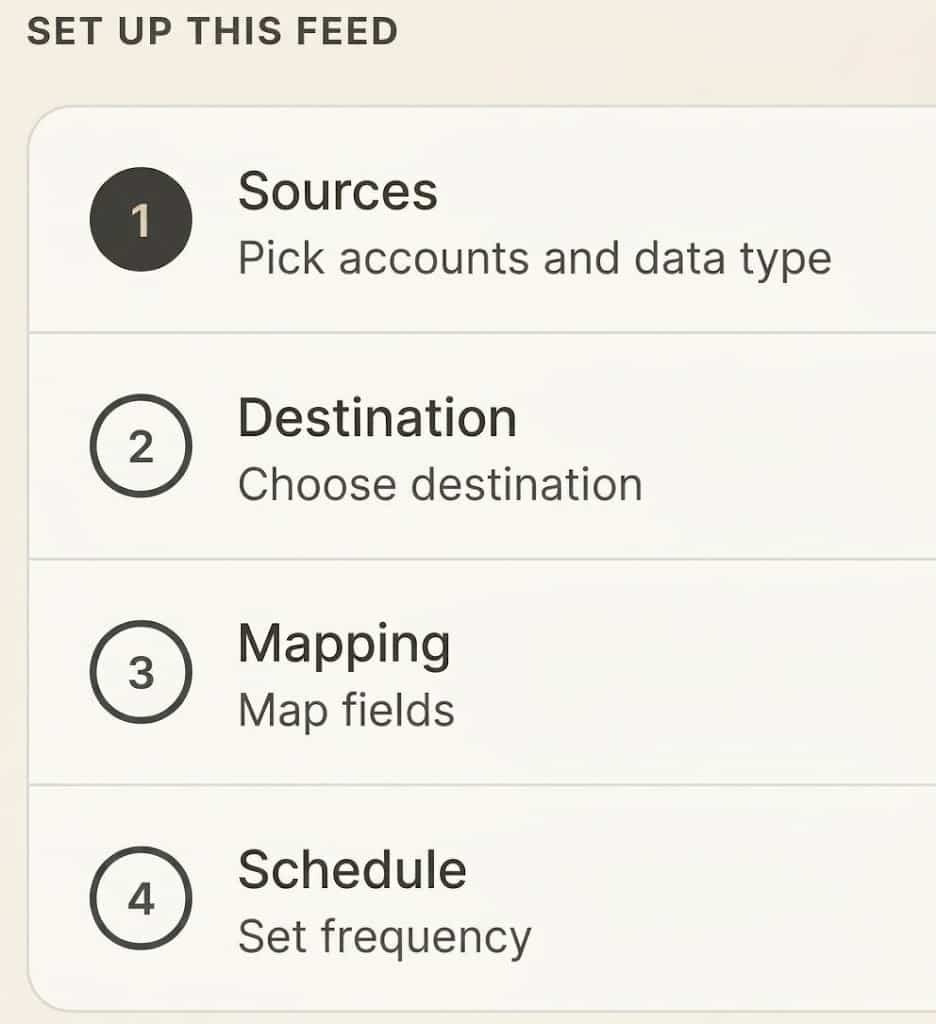
1. Sources — where your transactions are coming from
2. Destination — where you want those transactions to go
3. Mapping — where each piece of transaction data should go in your spreadsheet
4. Schedule — when you want the transactions to sync
These four settings work together to control the import. You’re telling Bank Sync where to get the transactions, where to send them, how to place the information in your spreadsheet, and when to bring it in.
We’ll go through each part as we set up the feed.
Can One Bank Feed Connect to a Specific Worksheet?
Yes. You can choose the Google Sheet you want to use and then go one step further by selecting the specific worksheet inside that spreadsheet where the transactions should go.
This is useful if your accounting spreadsheet has different entry worksheets for different financial accounts. In my accounting spreadsheet, for example, there can be separate entry worksheets for:
- Bank accounts
- Credit cards
- Loan accounts
- Payment processors
So if you’re setting up a feed for a checking account, you can connect that feed directly to the entry worksheet for that checking account.
That way, the transactions are being sent to the right place from the beginning instead of putting transactions from different accounts into the same worksheet.
Once you know how the feed works, the next step is actually setting one up.
How Do You Set Up a Bank Feed for Google Sheets?
To get started, click Add a bank feed in Bank Sync.
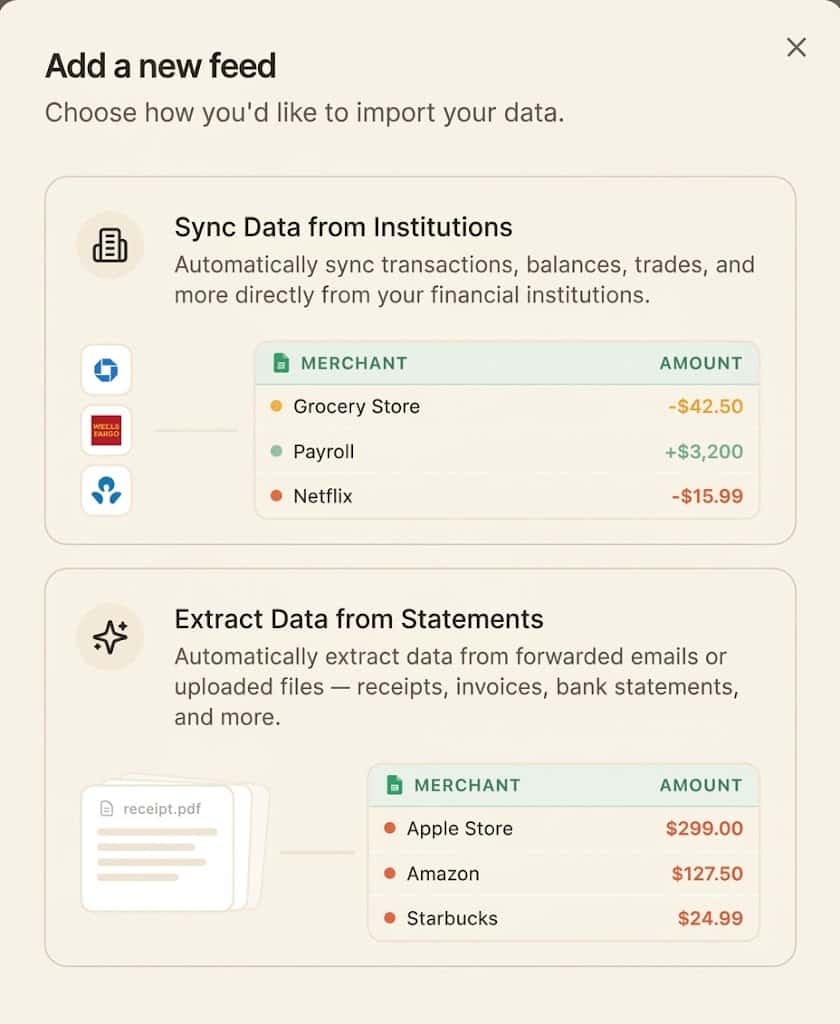
If you’re setting this up for the first time, you probably won’t have any feeds listed yet. Once you click Add a bank feed, you’ll have two options for bringing in your transactions:
- Sync from institution — automatically sync transactions from your bank or credit card account.
- Import from statements — import transaction data from your statements.
For this walkthrough, we’re using the Sync Data from Institutions option, which connects the bank or credit card account directly to the feed. The import-from-statements option isn’t covered here.
From there, you can start working through the setup, beginning with the account you want to connect.
How Do You Choose the Bank or Credit Card Account You Want to Sync?
Start with Sources.
This is where you’ll choose the bank or credit card account you want Bank Sync to pull transactions from. If you’ve already connected the account to Bank Sync, you can simply select it. If not, you can add the account first.
In this case, the feed is being set up for a new checking account, so that’s the account we’ll select as the source for the transactions we want to bring into the spreadsheet.
Once you’ve selected the account, Bank Sync knows where the transaction data should come from. Next, we need to tell it where that data should go.
How Do You Connect Google Drive to the Bank Feed?
Next, go to Destination. This is where you’ll choose the spreadsheet where you want your transactions to go.
Bank Sync can set up a spreadsheet for you, or you can connect one you’re already using. If you already have an accounting spreadsheet set up, you can choose your existing spreadsheet instead.
To connect it:
- Click the box under Spreadsheet.
- Choose the Google Drive account where your spreadsheet is stored.
- Search for the spreadsheet you want to use.
- Double-click the spreadsheet to select it.
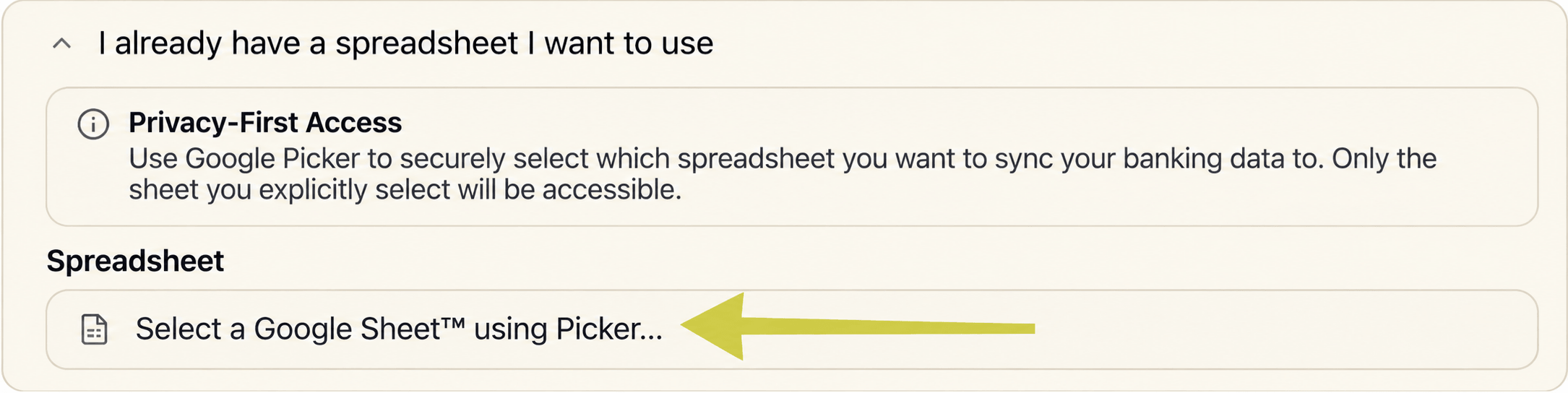
Here, we’re connecting the bank feed to an existing accounting spreadsheet for the new checking account.
Once the spreadsheet is connected, there’s one more choice to make: which worksheet should receive the transactions?
How Do You Choose the Spreadsheet and Worksheet Where Transactions Should Go?
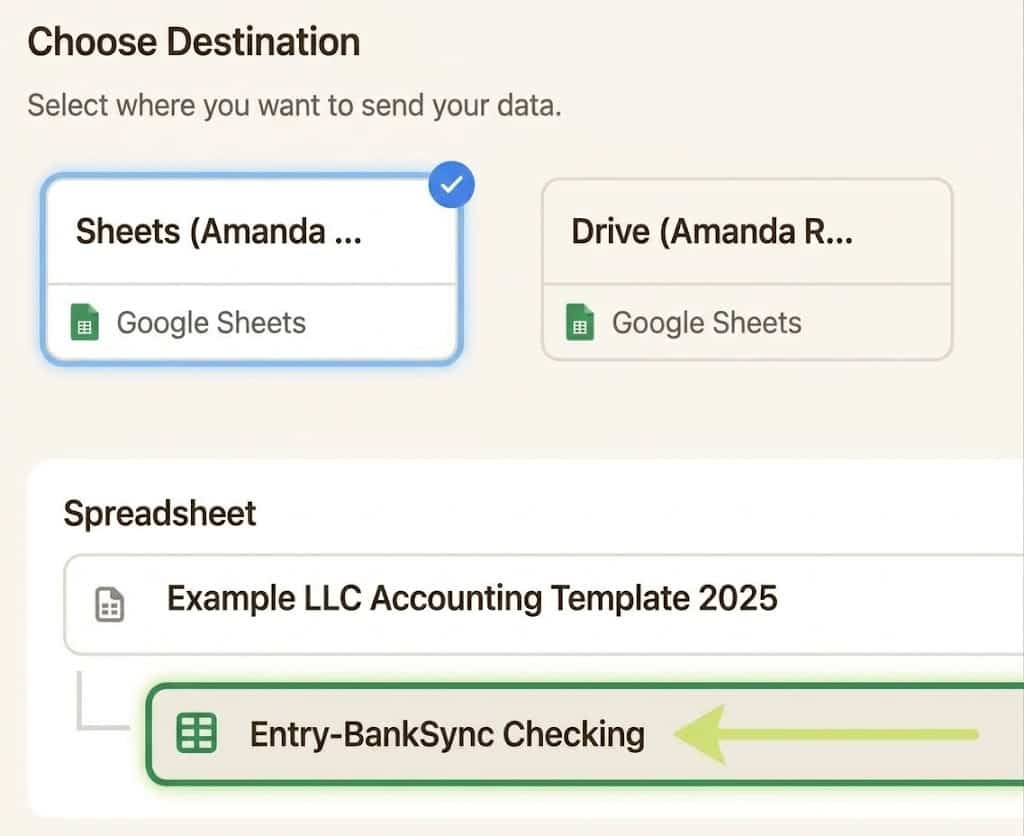
In my accounting spreadsheet, there’s a separate entry worksheet for each bank account, credit card, loan account, or payment processor. So for the new checking account we just connected, we can select its corresponding entry worksheet as the destination.
This keeps the transactions from each financial account going to the right place in the spreadsheet from the start.
At this point, Bank Sync knows:
- Source — which bank or credit card account the transactions are coming from
- Destination — which spreadsheet and worksheet should receive them
Next, we need to tell Bank Sync where each piece of transaction data should go within that worksheet.
That’s where Mapping comes in.
How Do You Map Bank Transactions to Your Google Sheet?
Once you’ve chosen your Source and Destination, the next step is Mapping.
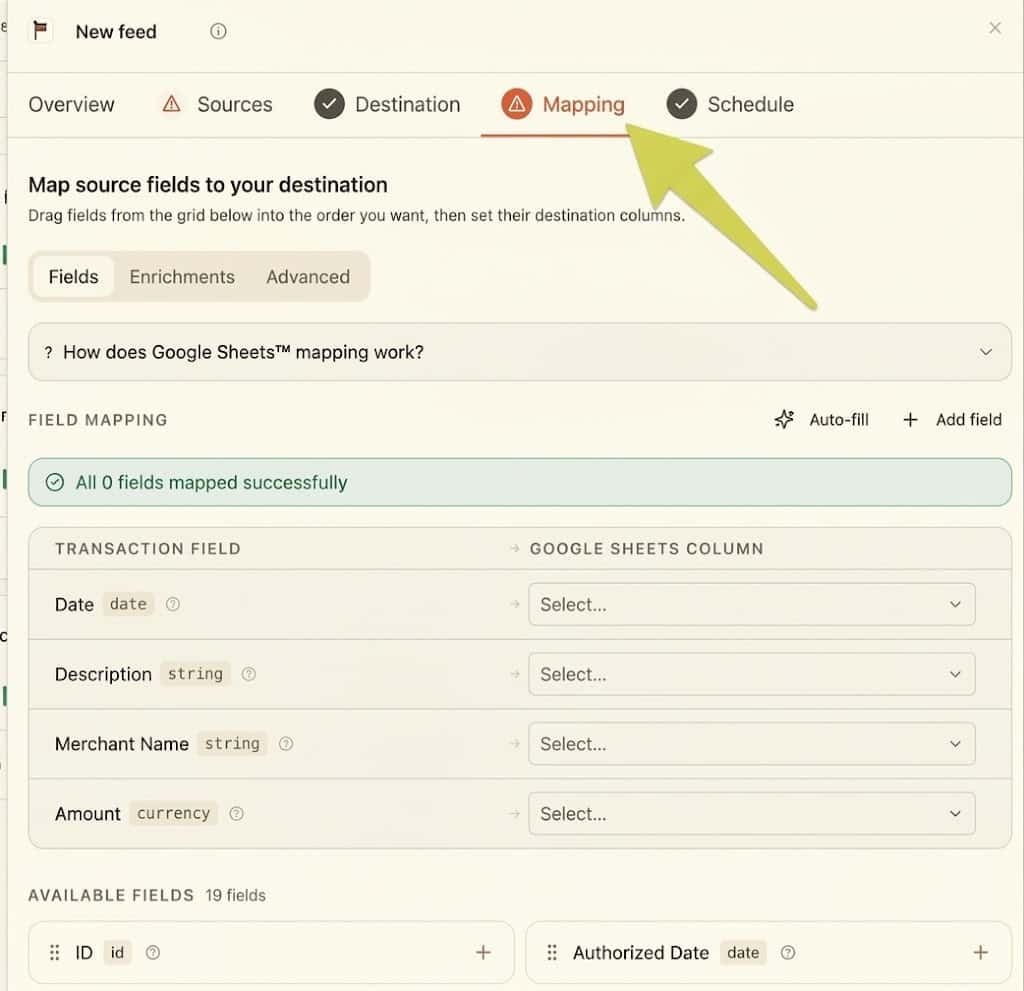
This is especially helpful when you’re connecting an existing accounting spreadsheet that already has specific columns set up for your transactions.
You can also choose which transaction details you want to bring in, giving you more control over how the imported data fits into your existing setup.
How Do You Choose Which Spreadsheet Columns Receive Each Piece of Transaction Data?
Under Mapping, you can match each transaction field from Bank Sync to the column where you want that information to appear.
In my accounting spreadsheet, the fields are mapped like this:
| Transaction Data | Spreadsheet Column |
|---|---|
| Date | Column A |
| Merchant Name | Column C |
| Description | Column D |
| Amount | Column G |
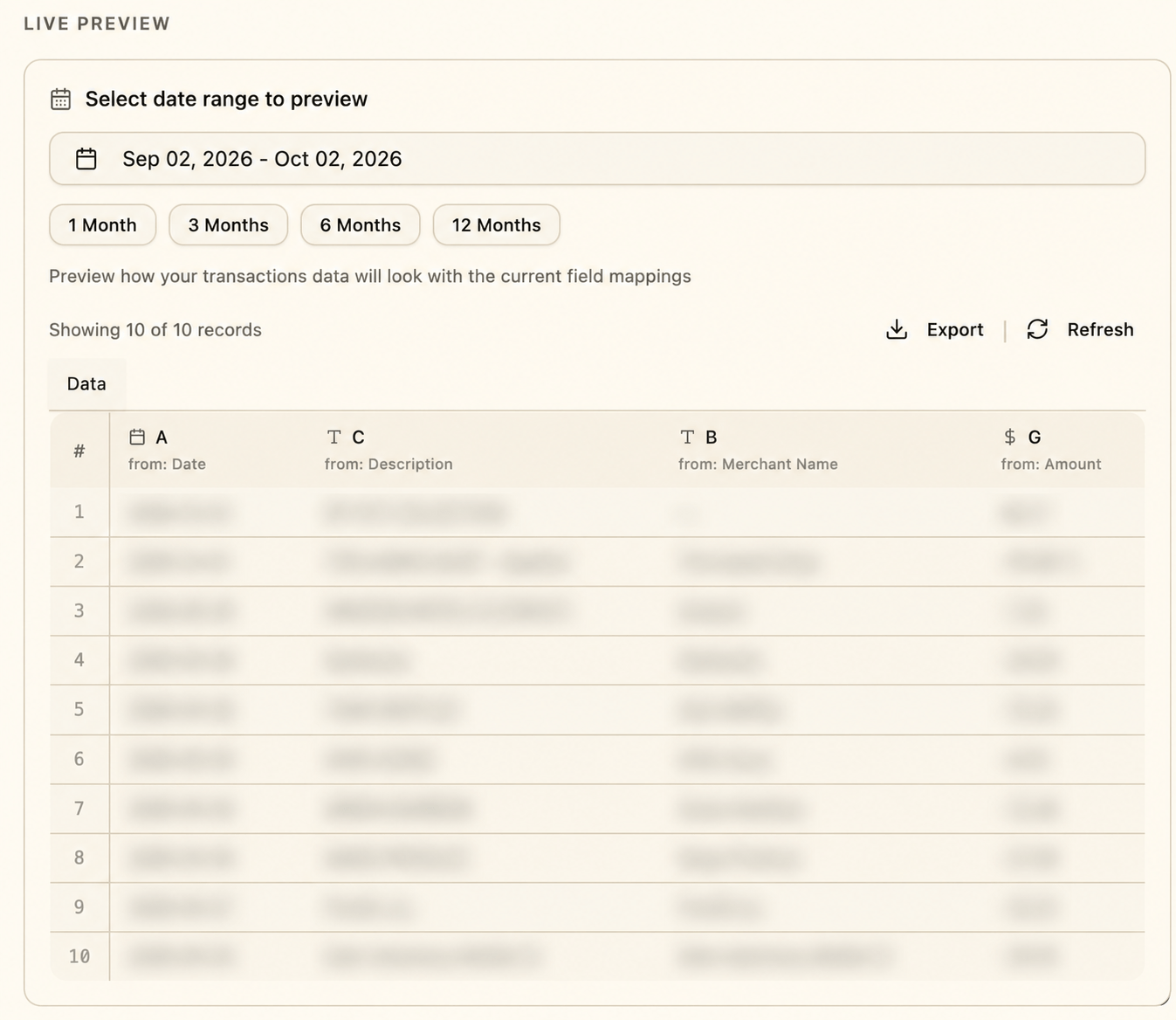
So if your spreadsheet is already organized the way you want it, you can simply map each piece of information to the column where it belongs.
The preview also gives you a chance to double-check the setup before syncing, so you can make sure the transaction data is lined up with the right columns in your spreadsheet.
What Transaction Details Can You Import?
The transaction details available in this setup include the date, merchant name, description, and amount.
Each one can be mapped separately, which gives you control over how the imported information is organized in your spreadsheet.
For example, the date goes into Column A, the merchant name goes into Column C, the description goes into Column D, and the amount goes into Column G.
From there, any columns that aren’t needed for the automatic import can simply be left out of the mapping.
Can You Skip Spreadsheet Columns You Don’t Need?
Yes. You don’t have to map every column in your spreadsheet.
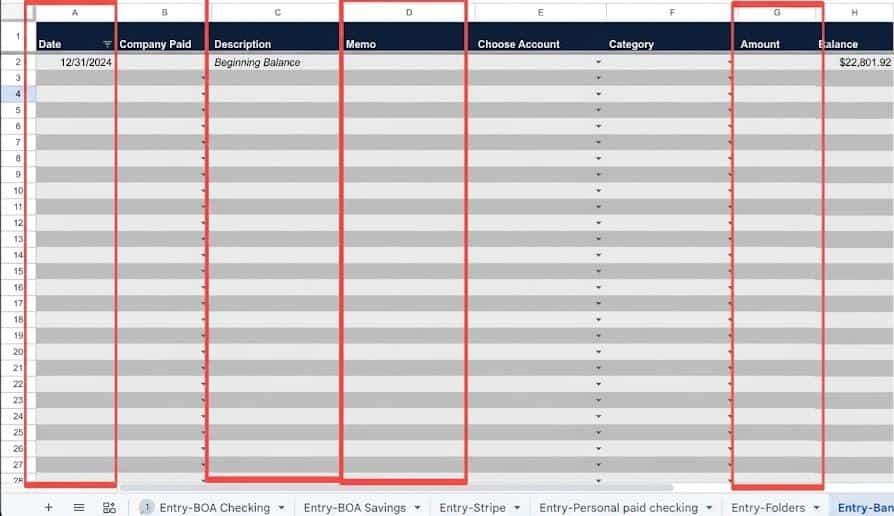
In this accounting spreadsheet, Columns B and F are extra category columns, so we’re going to skip those during the import. Column E is where we’ll select the account after the transactions are imported, so that column isn’t part of the automatic import either.
That means Bank Sync will bring the transaction data into Columns A, C, D, and G, while leaving the other columns available for the information we’ll add separately.
We’ll come back to Column E later because selecting the account there is what helps the accounting reports update based on the imported transactions.
Once everything is mapped and the preview looks right, the last part of the setup is deciding when you want those transactions to sync.
How Do You Automatically Sync Bank Transactions to Google Sheets?
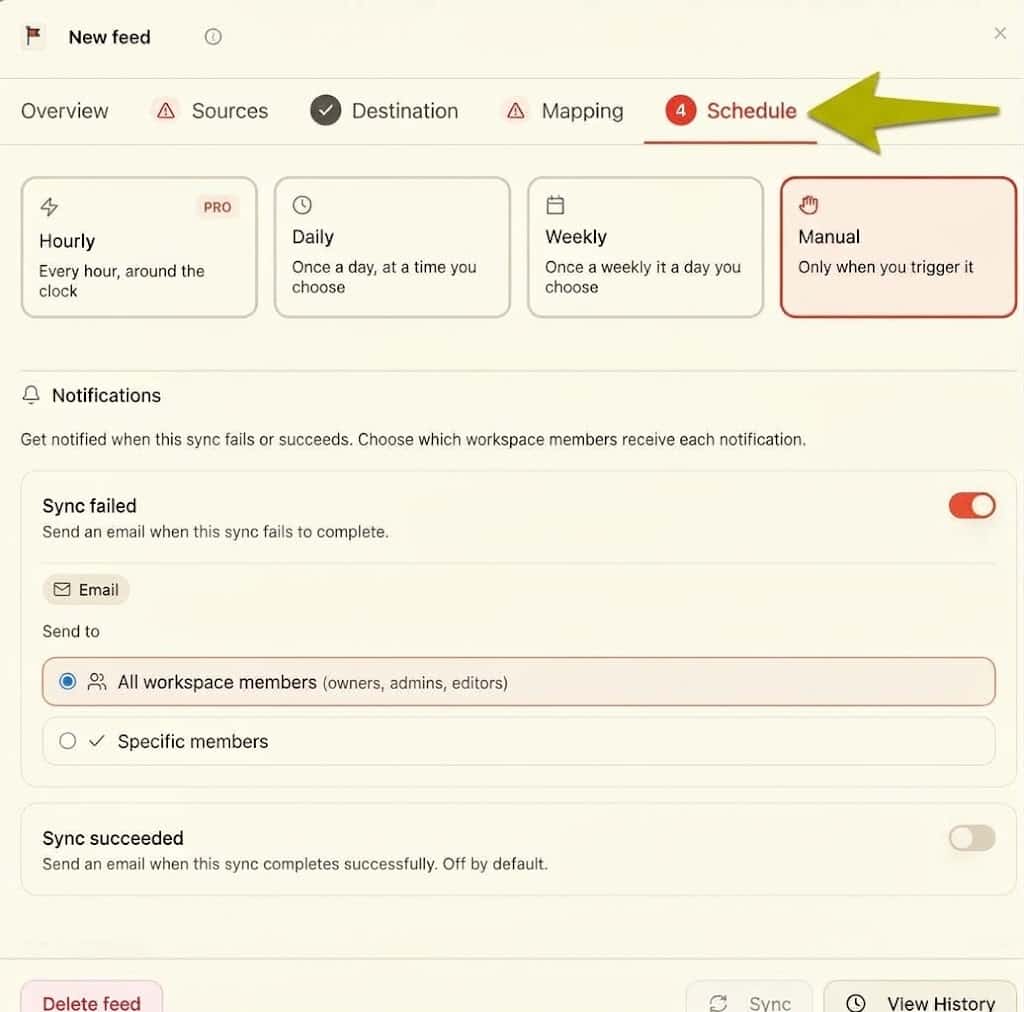
The last part of setting up your bank feed is the Schedule. This is where you decide how often you want Bank Sync to bring new transactions into your spreadsheet.
You can set up an ongoing schedule for your transactions, but you can also choose a specific date range when you need to bring in transactions from a certain period.
This gives you more control over when new transactions are brought into your spreadsheet.
How Often Can Transactions Sync?
Bank Sync gives you different options for how often your transactions can automatically sync.
| Schedule | How It Works |
|---|---|
| Hourly | Syncs transactions every hour |
| Daily | Syncs once a day at a time you choose |
| Weekly | Syncs once a week |
| Manual | Syncs when you choose to run it |
The hourly option is available on the Pro plan, while the other plans can be set up to sync daily. You can also choose weekly or manual syncing if you don’t need transactions coming in as often.
If you choose a daily schedule, you can also select the time of day you want the sync to run. So you’re not only deciding how often your transactions come in—you can also choose when you want your spreadsheet to update.
Once you have the schedule set up, you can decide which dates you want to include in the sync.
Can You Choose a Custom Date Range for the Transactions You Want to Import?
Yes. You can also choose a custom date range for the transactions you want to bring into your spreadsheet.
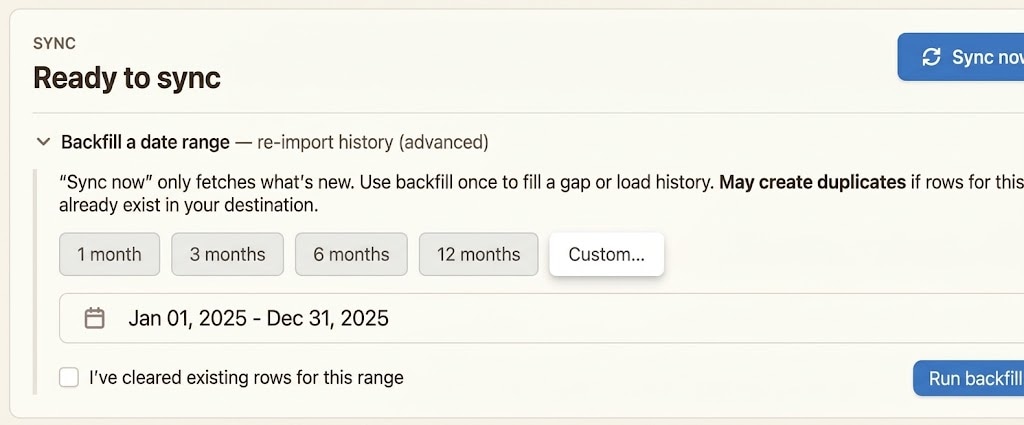
Here, we’re working with the transactions for 2025, so we can select the dates we want to include before running the sync.
This is especially helpful when you’re setting up a new bank feed and already have transactions from a specific period that need to be brought into the spreadsheet.
Once you have the dates selected, you can click Sync and let Bank Sync bring those transactions in.
What Happens After the Transactions Are Synced?
Once the sync is finished, you’ll see the transaction information come into the worksheet based on the mapping we set up earlier.
The date, description, memo, and amount are brought into the spreadsheet, and the balance column updates automatically as the transactions come in.
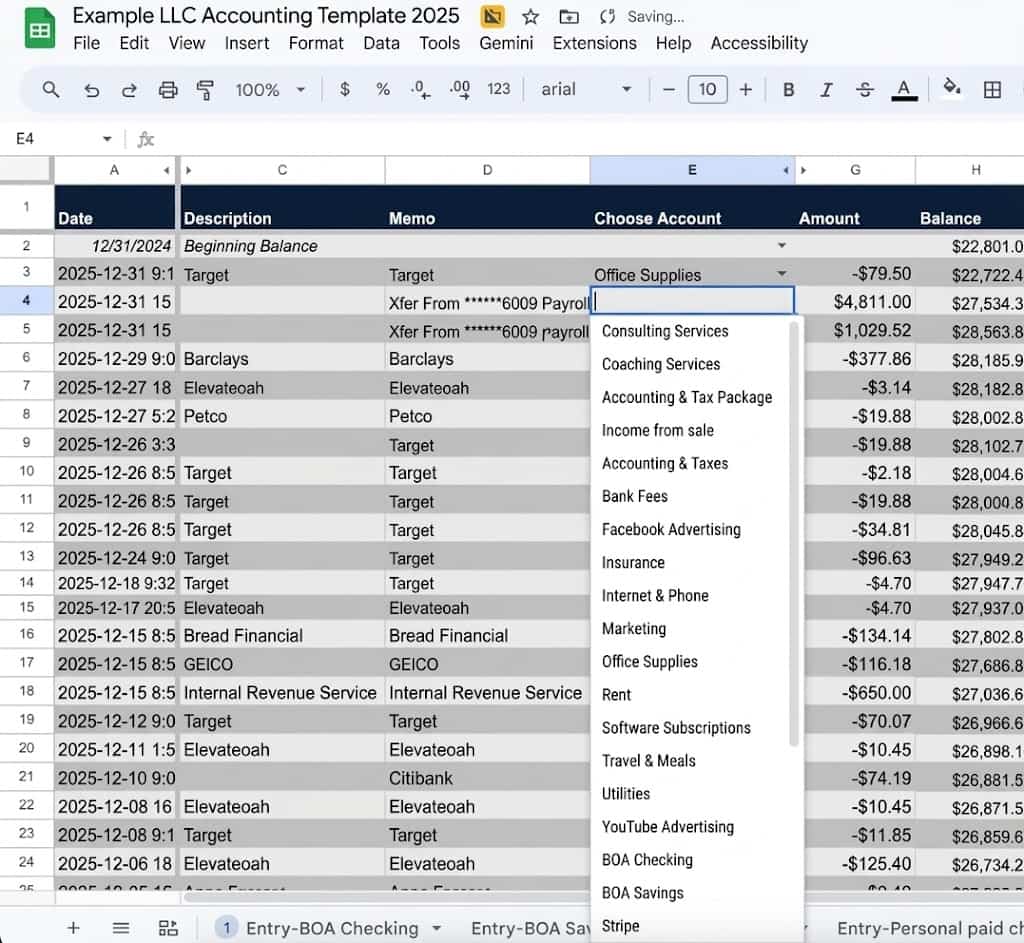
For this example, there are still a couple of things to finish inside the spreadsheet. The extra category columns in B and F can be hidden if you don’t need them, and you’ll still need to select the appropriate account in Column E for each transaction.
Once the account is selected, the spreadsheet can use that information to update the appropriate reports.
And those reports can go beyond simply tracking income and expenses. The complete accounting spreadsheets can also track things like:
- Liabilities and assets
- Owner’s equity
- Balance Sheet information
- Profit by category or job
- Sales taxes
- Amounts paid to contractors
- Amounts received from clients
So once your transactions are imported and the accounts are selected, the spreadsheet can use that information to update the reports built into the template.
Want to Automatically Import Your Own Transactions?
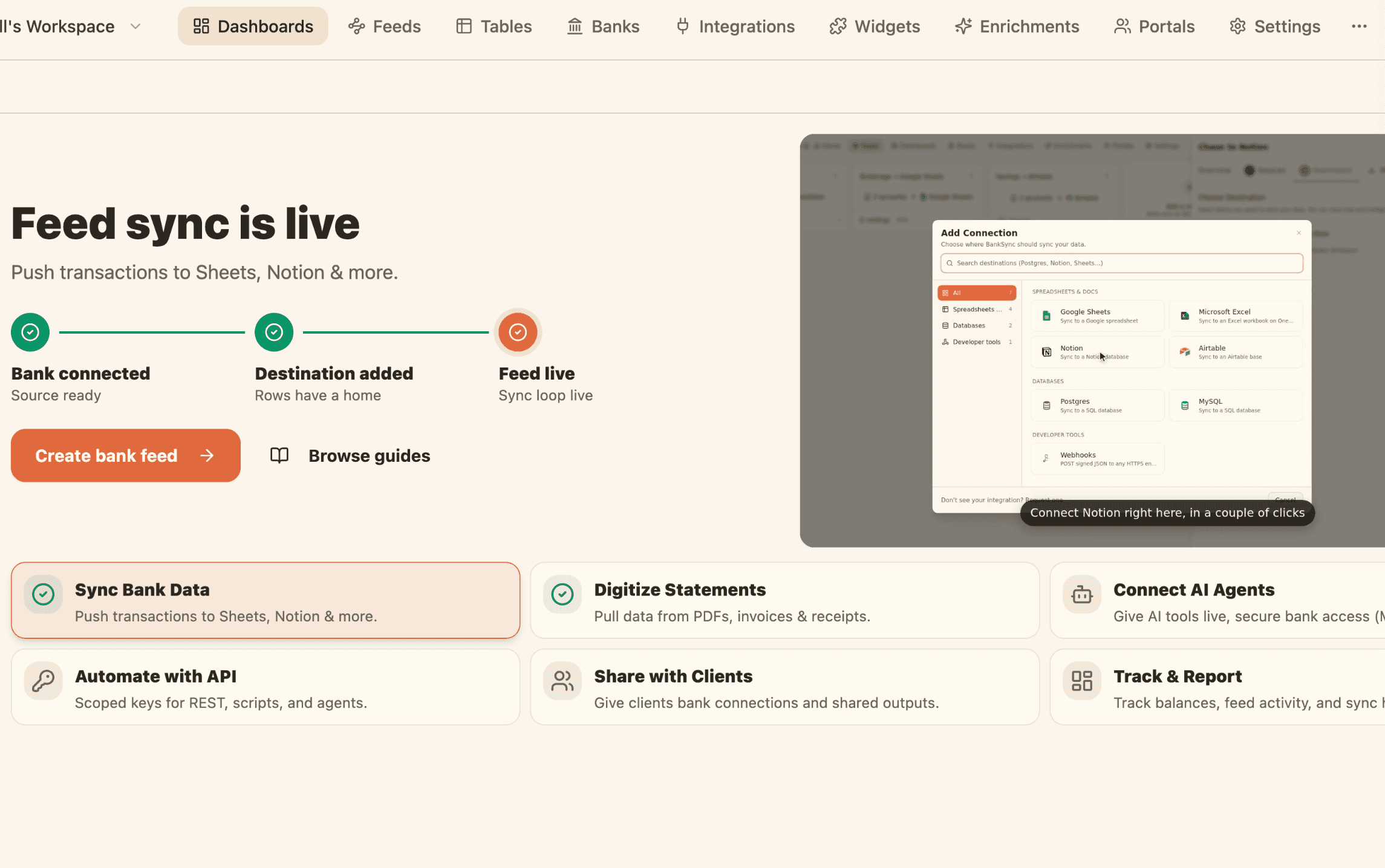
Set up your bank feeds, choose where your transactions should go, and let Bank Sync handle the importing instead of downloading and copying them over manually.
Get Started With Bank Sync Here!
What Should You Know Before Using Bank Sync?
Once everything is set up, Bank Sync can take a lot of the manual work out of getting your transactions into your spreadsheet. But just like with other bank feeds, there are still a few things you’ll want to watch for.
For the most part, the connections have worked well, including with credit union accounts, which can sometimes have trouble staying connected with accounting software.
You may also occasionally see things like:
- Duplicate transactions — these can come through when the feed updates, but they’re easy to delete from the spreadsheet.
- Disconnected accounts — a bank connection may occasionally need to be reconnected, so it’s worth checking that your feeds are still connected.
- Connection issues — if something isn’t working correctly, Bank Sync support has been responsive when I’ve needed help.
The main thing is to review your transactions as they come in and make sure everything is importing the way you expect.
It’s also a good idea to periodically check the balances when you log in to your accounts and make sure they match what you’re seeing in your spreadsheet. This is a simple way to confirm that your feeds are still connected and your transactions are coming through correctly.
Once you have that routine in place, you get the convenience of having your transactions brought into your spreadsheet automatically while still keeping the flexibility of managing your books in Google Sheets.
How Does Bank Sync Compare to Other Bank-to-Spreadsheet Tools?
If you’ve been looking for a way to automatically bring your bank transactions into a spreadsheet, you may have come across a few different tools that can do this.
Some options include CapitalView, Tiller, and Fintable, which can also connect financial accounts and bring transaction data into Google Sheets.
What makes Bank Sync a good fit for the setup we’re using here is how easily it can work with a spreadsheet you already have. You can choose the specific spreadsheet and worksheet where you want each bank feed to go, then map the transaction details directly to the columns you’re already using.
That means you don’t have to rebuild your accounting spreadsheet just to automate your bank transactions. You can keep the setup that already works for you and use Bank Sync to automate the part that would otherwise require downloading and copying transactions manually.
Ready to Do More With Your Accounting Spreadsheet?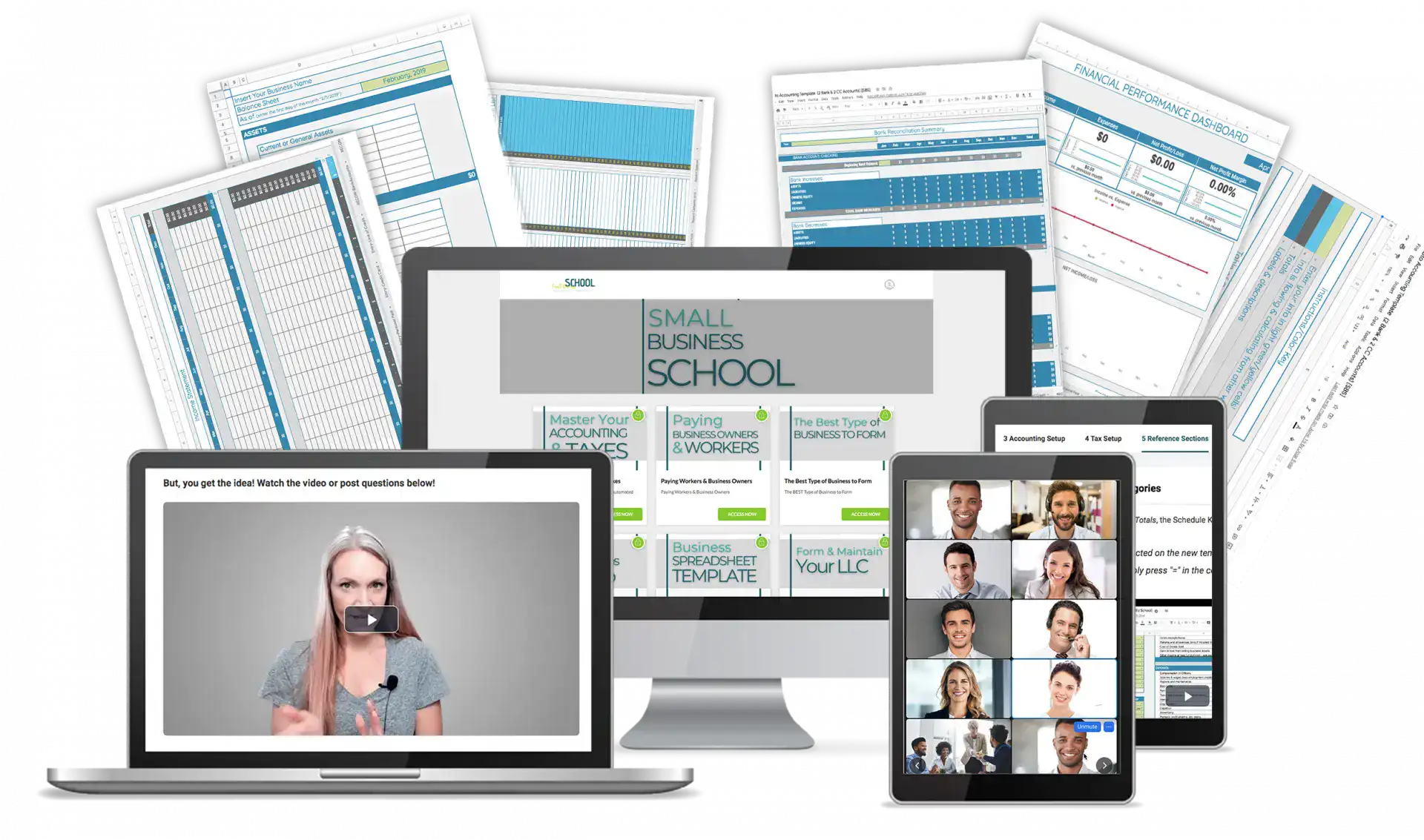
Now that you’ve seen how automatically imported transactions can work inside an accounting spreadsheet, you can take the same setup further with the complete templates included in my Master Your Accounting & Taxes Program.
These spreadsheets go beyond tracking income and expenses and give you a more complete system for organizing your business accounting and tax information in one place.
It’s a practical next step when you’re ready to move beyond basic income and expense tracking.
Check Out Master Your Accounting & Taxes Here!
FAQs
Can You Import Credit Card Transactions Into Google Sheets?
Yes. Bank Sync can connect both bank and credit card accounts to your spreadsheet, so you can automatically bring in transaction data from either type of account.
Do Imported Bank Transactions Still Need to Be Categorized?
Yes. Bank Sync brings the transaction data into your spreadsheet automatically, but you still need to select the appropriate account for each transaction.
In the accounting spreadsheet shown here, that selection is made in Column E, which allows the spreadsheet to update the appropriate reports based on the imported transactions.
Can You Import Transactions Into an Existing Google Sheet?
Yes. You don’t have to create a new spreadsheet just to use Bank Sync. You can connect an existing Google Sheet, choose the specific worksheet where you want the transactions to go, and map the transaction data to the columns you’re already using.
Do You Have to Import Every Spreadsheet Column With Bank Sync?
No. You can choose which transaction fields are mapped to your spreadsheet and leave other columns out of the automatic import.
In the setup shown here, the transaction data is imported into Columns A, C, D, and G, while the other columns are left available for information added separately.
Can You Choose Which Bank Transactions to Import by Date?
Yes. When you’re ready to sync your transactions, you can choose a custom date range for the period you want to bring into your spreadsheet.
This is useful when you’re setting up a new feed and only need transactions from a specific period, rather than bringing in everything at once.
About the Author
Hi there, 
Background in public accounting, teaching courses in higher education and specializing in small business coaching, services and education. I'm Amanda!
Your Instructor | The Business Finance Coach
I've spent my career in accounting, tax, finance, and education—from working at PwC and KPMG to teaching accounting and taxes at colleges and universities, and creating educational content for companies including Intuit TurboTax.
Throughout that experience, I kept seeing the same problem: small business owners were hugely underserved.
They were overwhelmed by complicated accounting software, confused by conflicting advice, and often left feeling like this was a hopeless area of their business that they would never understand.
I knew there had to be a simpler way.
So I took what I'd learned from accounting firms, education, and working with real businesses, and created The Business Finance Coach and The Master Your Accounting & Taxes Program.
My goal is to make business finances simple, practical, and understandable—so you can confidently manage your business, keep more of what you earn, and focus on building the business you actually want.


![Best Accounting Software [Xero vs. Quickbooks vs. Wave vs. Freshbooks vs Spreadsheets]](https://dropinblog.net/img/pe2apnlc/700/youtube-thumbnail-best-accounting-software-v2-what-they-dont-tell-you)